> For the complete documentation index, see [llms.txt](https://docs.zigpoll.com/llms.txt). Markdown versions of documentation pages are available by appending `.md` to page URLs; this page is available as [Markdown](https://docs.zigpoll.com/analytics-ai-and-reporting.md).
# Analytics, AI, and Reporting
How to review and analyze your data using Zigpoll's built-in reporting features
Zigpoll comes with a built in suite of analytics that makes it easy to understand responses at high volume. Here's an overview:
{% hint style="info" %}
**Available on every plan, including Lite.** Automatic account insights, automatic survey insights, write-in themes & summaries, and Z-GPT chat with your data are all included on every Zigpoll plan. Plans only differ in the monthly AI analysis credit allotment used for on-demand insights — see [Subscription Plans](/subscription-plans.md).
{% endhint %}
The AI features below (Z-GPT Insights, Z-GPT Chat, and AI action items) write their replies in the language set under [Preferred language](/accounts/general-settings.md#preferred-language) in your account's General Settings. Change it there if you'd like your AI summaries and chat replies in another language.
#### Charts
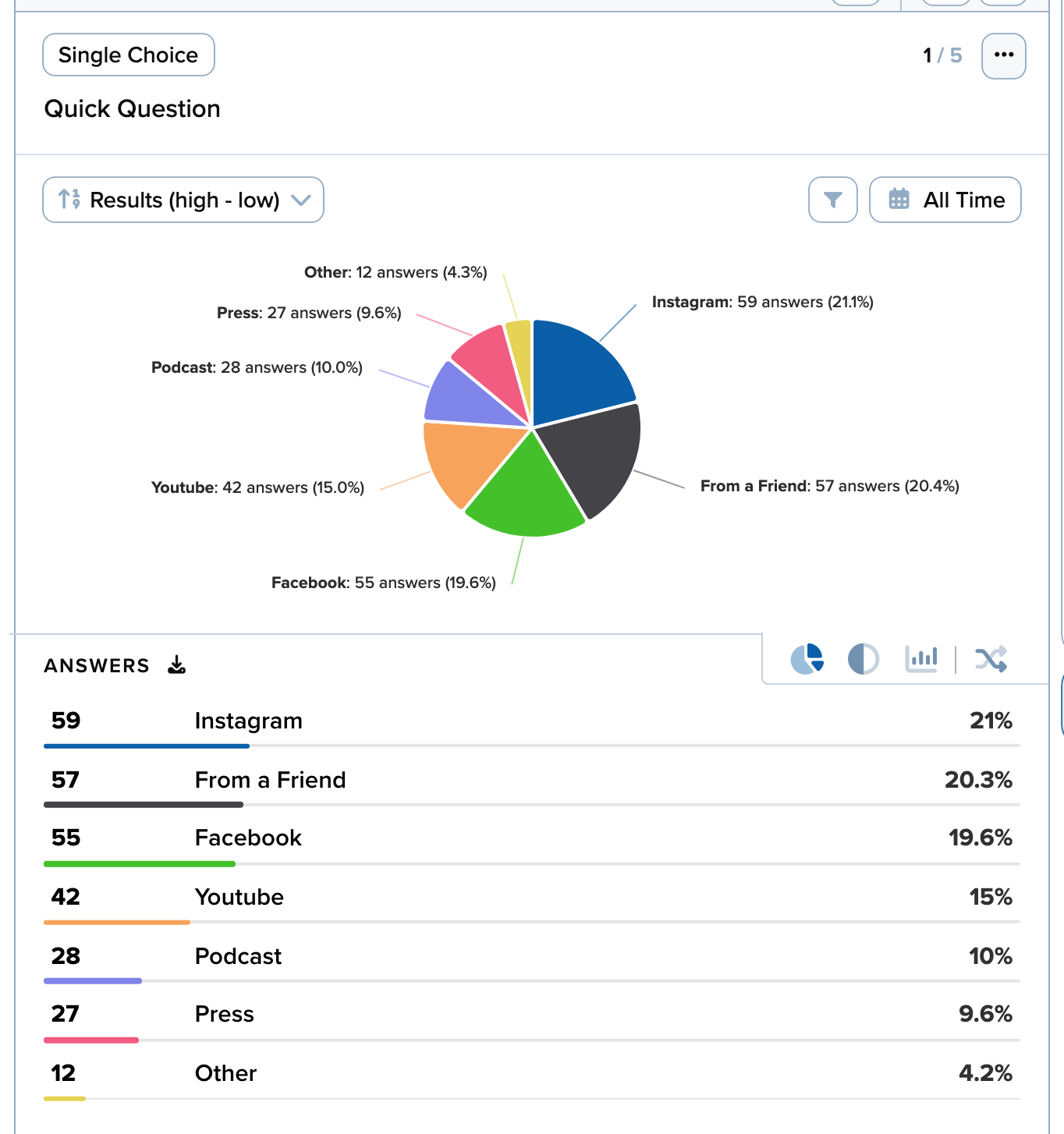
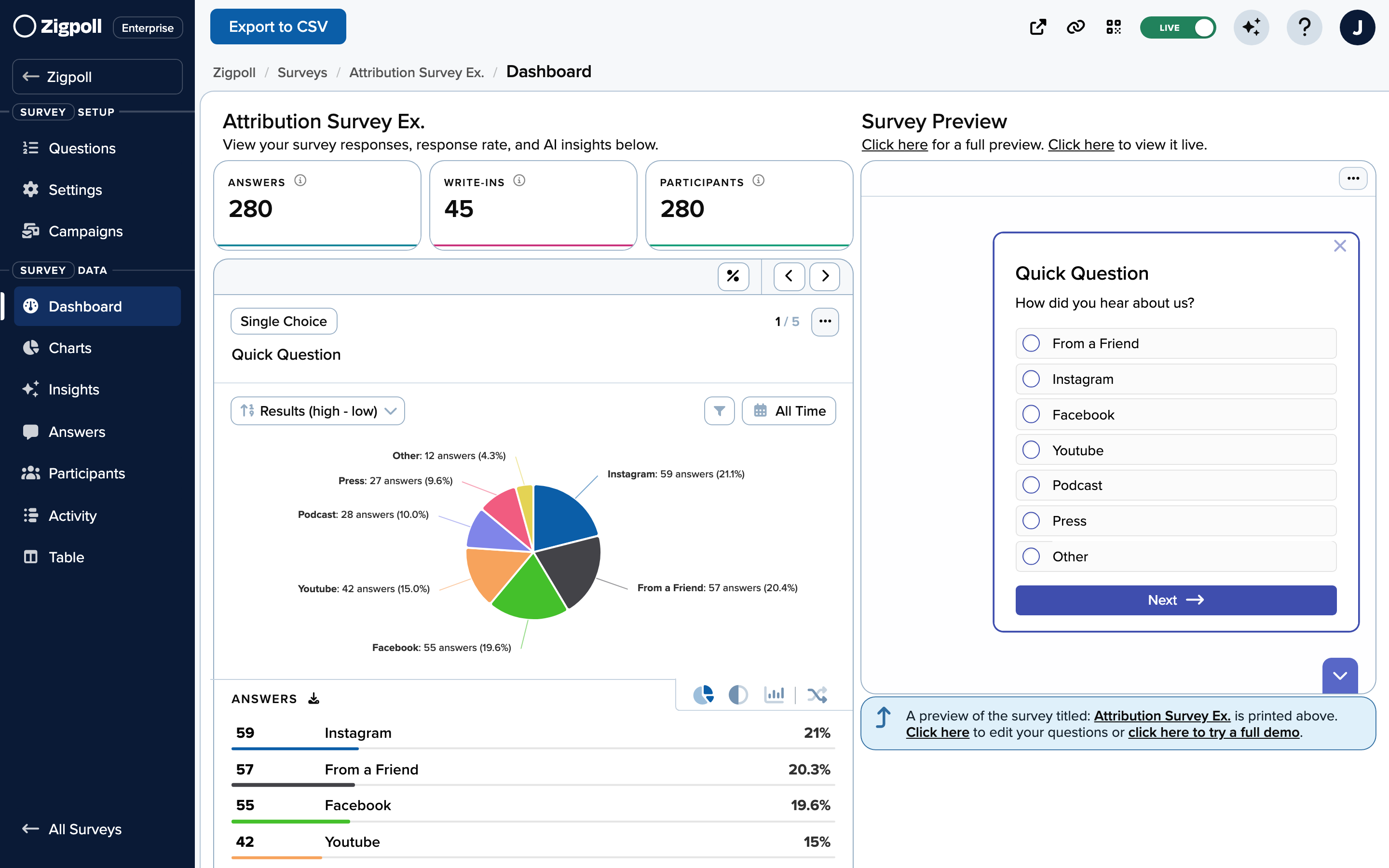
Zigpoll has built in charts and data visualization.
You can see these in the dashboard and the charts are auto-generated for each question.
#### Lifetime tiles and the date range
The tiles along the top of your account **Dashboard** and a survey's **Dashboard** always show lifetime totals, however you set the date range. They are **Answers**, **Write-Ins**, **Participants**, and, for email or SMS surveys, **Emails Sent** or **SMS Sent**. The small change figure beside each one compares it with the previous period.
Pick a date range on the survey card or a question card below them, and those cards switch to the range you chose. That covers **Views**, **Opens**, **Closes**, **Responses**, **Participants**, **Completions**, and the rates. The charts and per-answer totals follow it too. The **Charts** page has its own date picker.
#### Response Rate, Answer Rate, and the other rates
| Rate | Where | What it measures |
| ------------------- | ------------- | --------------------------------------------------------------------------------------------------- |
| **Response Rate** | Survey card | Responses, one per person who took the survey, divided by the number of times the survey was shown. |
| **Engagement Rate** | Survey card | Times people engaged with the survey, divided by the number of times it was shown. |
| **Completion Rate** | Survey card | Times the survey was finished, divided by the times people engaged with it. |
| **Answer Rate** | Question card | The share of views of this question that produced an answer. |
| **Engagement Rate** | Question card | The share of participants who engaged with this question in any way, including skipping past it. |
| **Dropoff Rate** | Question card | The share of participants who stopped filling out the survey at this question. |
**Views** on a question card counts how many times that question was viewed. **Views** on the survey card counts how many times the survey was viewed.
#### Share of Answers and Penetration Rate
On **Multiple Choice**, **Mosaic**, and **Image Choice** questions, click the percentage beside any answer to switch how percentages are worked out:
* **Share of Answers**: the answer's count divided by all answers picked on the question. The percentages add up to 100%.
* **Penetration Rate**: the answer's count divided by the number of people who engaged with the question. It reads as "what share of people picked this". Because one person can pick several answers, the percentages can add up to more than 100%.
The toggle isn't available while a metadata filter is applied.
#### Cross tabs
A cross tab shows how people who gave one answer answered another question. For example, "what % of people who answered X answered Y".
1. On a survey's **Dashboard**, go to a fixed-choice question's card.
2. Click **Cross Tab**, or choose **Cross Tabulate Answers** from the question's **⋯** menu.
3. In the **Cross Tabulate** window, pick the two questions to compare and a date range.
4. Click **Generate Cross Tab**.
The result is a heatmap. Use **Flip Axis** to swap the questions, or the **Download CSV** icon to save the table. Cross tabs aren't available for ranking questions.
#### Revenue and AOV on the Charts page
For questions answered on a Shopify thank-you or order status page, the Charts page adds a metric picker next to the interval picker: **Responses**, **Attributed Revenue** or **Average Order Value**. Every chart on the page follows the metric you choose, including the previous-period comparison, so you can see revenue by answer week over week for an attribution question. Each answer is credited with the full order total behind it, so on a multi-select question the revenue across answers can exceed store revenue; AOV divides by the answers that carry an order value.
#### Answers by field
Below the time series, every fixed-choice question whose responses carry attribution or traffic metadata shows an **Answers by** module. Pick a field and the module splits the question's answers by it. The first two fields, **Reported Channel** and **Reported Source**, are what the customer said: Zigpoll reads them from each customer's answer to the survey's attribution question, as described under [Reported channel and source](#reported-channel-and-source). The rest are what was tracked. On-site surveys offer the fields Zigpoll reads from the URL the customer arrived on: UTM source, medium, campaign, content and term, referrer, landing page, and Meta or Google ad parameters (campaign, ad set, ad, placement). Post-purchase, abandoned checkout and order-triggered email or SMS surveys also offer what Shopify recorded on the order: the last-click source and source type, the order's landing page and referrer, and the discount code. Only fields present on the question's responses are offered, and a question with none of them shows no module. Each row is one value with its responses, share and, where the responses have an order behind them, attributed revenue and AOV; expand a row to see how those customers answered, and use the heatmap for the full answer-by-value grid. Common spellings of a channel (for example "Facebook", facebook.com and the Facebook app) are folded into one row. The first tile, **Has UTM medium** or **Has last-click source**, is the share of responses that carry the field (**Used a discount code** for the discount pivot), and the empty bucket is named to match: **No UTM medium**, **No tracked source**, **No discount code**. With **Compare to previous period** on, each row also shows its change in responses and attributed revenue against the previous window. On a "How did you hear about us?" question this is the stated-versus-tracked attribution check; on a "Who is this purchase for?" question it shows which campaigns bring gift buyers. The same report is available to the API as `GET /poll/attribution` and to AI assistants as the `analyze_attribution` MCP tool.
**Projected totals.** Only some of the customers who see a survey answer it. The **Surveyed** tile gives how many customers the survey reached in the selected range and the share who answered this question, and the **Projected totals** switch beside the field picker lifts every row from those who answered to everyone surveyed: responses are divided by the response rate, and revenue is each row's AOV times its projected responses, so shares and AOV do not move. It is an estimate that assumes the customers who skipped the survey are like the ones who answered, and the table says so underneath while it is on. The switch is offered only when the range can be projected honestly: views were recorded, the question has at least 30 responses, the response rate is 5% or more, no filter is applied (a filter narrows responses but not views), and the range does not have more responses than views. Add `?projected=1` to the Charts page URL to open it projected. The [Reporting API](https://apidocs.zigpoll.com/) returns the same projected figures, and the reason when a projection isn't available.
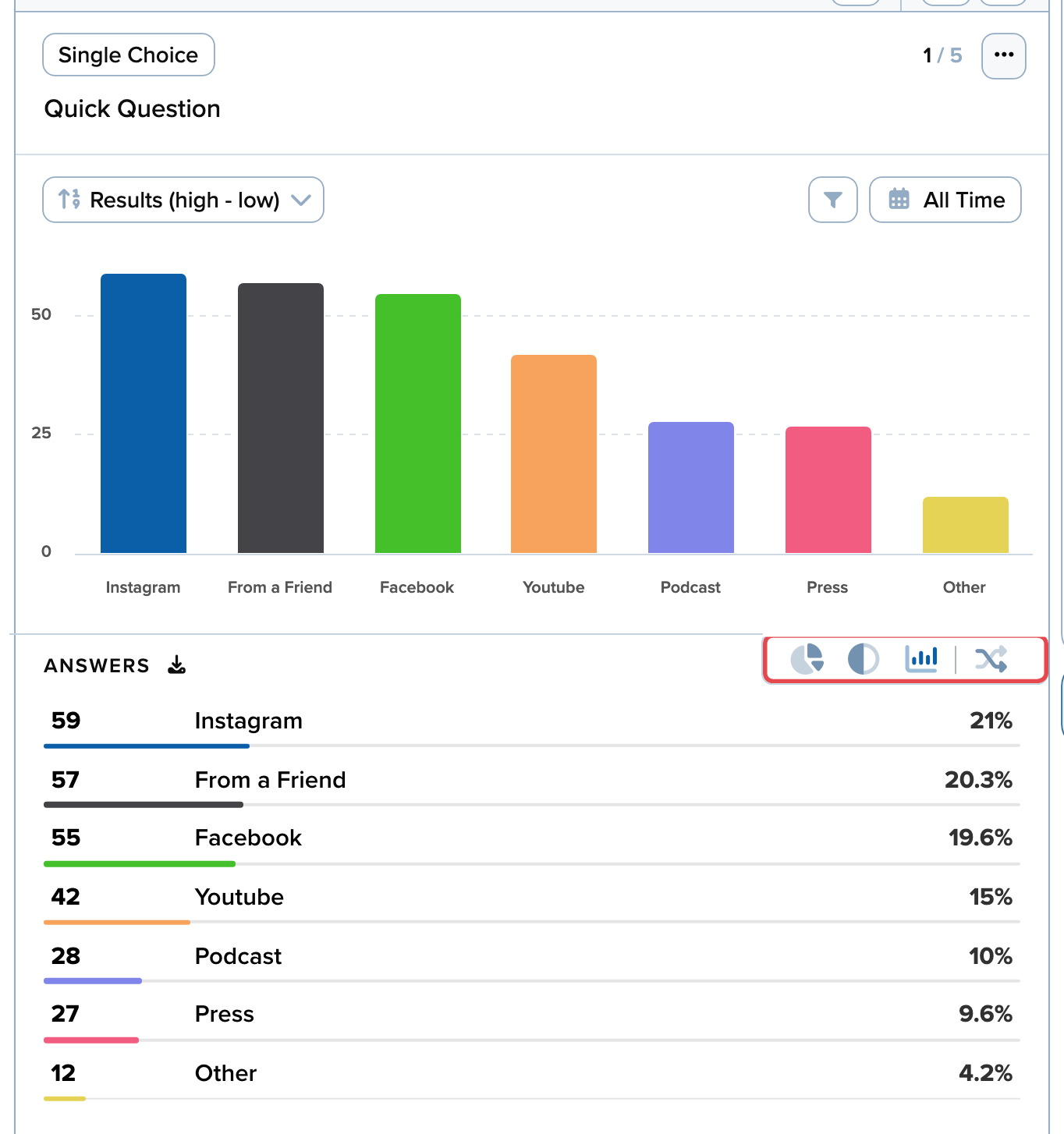
You have the ability to change the format of the chart by pressing the icons underneath it, on the right:
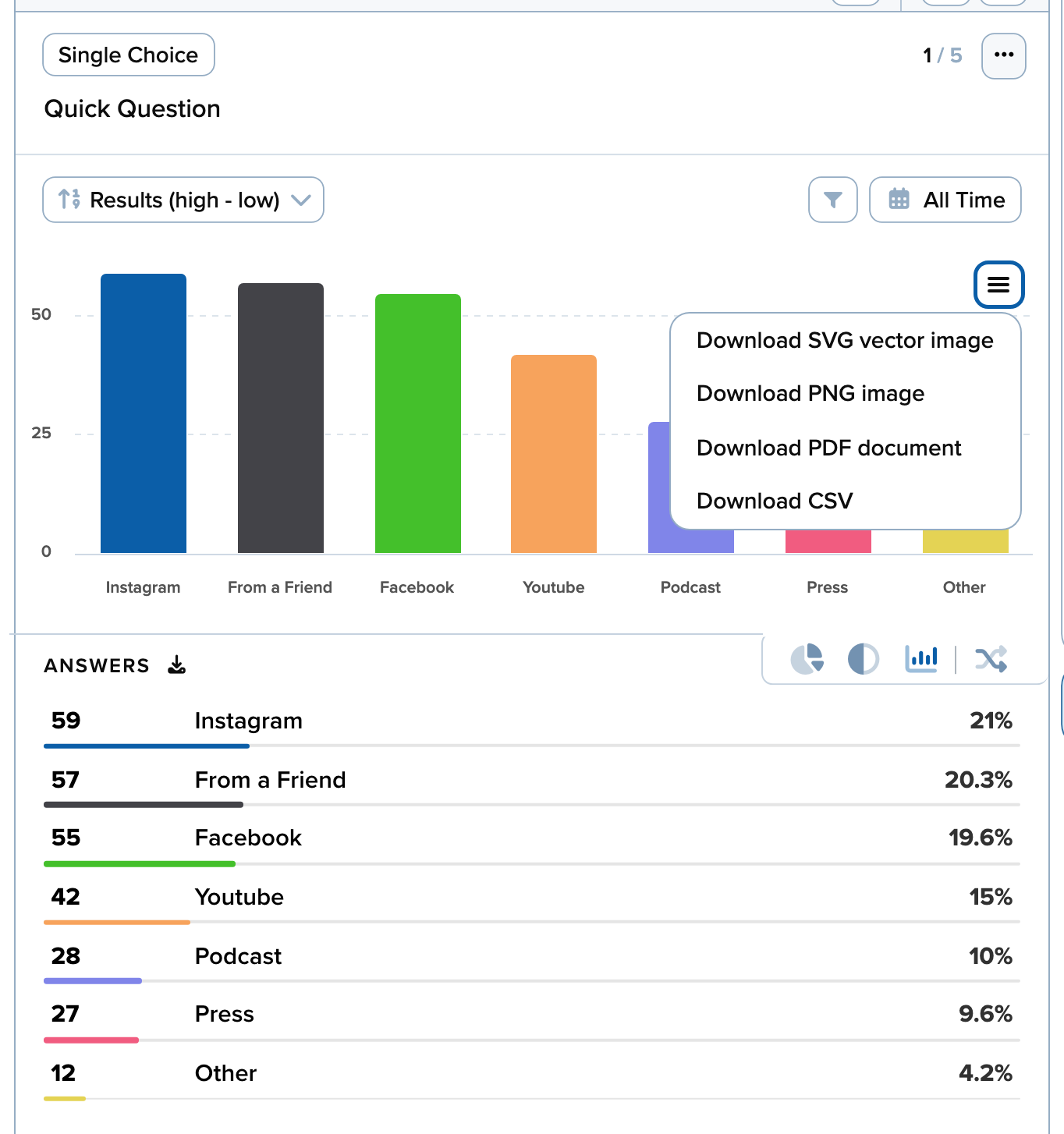
The generated charts can be easily exported for reporting or adding to question decks. Hover over the chart and click the menu icon that appears underneath the date range to do so:
#### Reported channel and source
**Reported Channel** and **Reported Source** in the **Answers by** picker come from the survey itself. Zigpoll reads each customer's answer to the survey's attribution question ("How did you hear about us?"), including "Other" write-ins and any follow-up question such as "Which podcast?", and adds two metadata keys to the response a few minutes after it is submitted:
* `attribution_channel` is one value from a fixed list, such as `instagram`, `search`, `podcast` or `word_of_mouth`. "Instagram" picked as a fixed answer and "insta" typed into "Other" both land on `instagram`.
* `attribution_source` is the name the customer gave, when they gave one, such as "The Daily", "@somehandle" or "ChatGPT".
There is nothing to set up. No AI model is involved, and your sentiment and AI settings don't affect it.
The other fields in the picker are tracked: they hold what the URL, the UTMs or Shopify recorded about the visit. The reported fields hold the customer's own answer. The two can disagree, and where they do is the useful part. A customer whose last click was a Google search may say a podcast sent them, and word of mouth has no tracked value at all. Pick **Reported Channel** on any other question, such as "Who is this purchase for?", to split its answers by how customers say they found you. Or filter the page to one reported channel and then pick a tracked field to see how that channel's customers actually arrived.
Reports trail new responses by about a minute, or up to ten minutes for a survey that was left unfinished. Responses collected before this was released don't have the two fields unless Zigpoll support backfills them for your account. The full list of values is in [Special Variables](/embed/poll-metadata/special-variables.md#reported-attribution-metadata), and [How do I find out how customers heard about my store?](/tutorials/attribution-surveys.md) covers how a question is recognized and how to collect the named source.
#### Filtering results by metadata
You can narrow any question's results down to the responses that carry a particular piece of metadata — for example, only the customers who purchased a specific product, ordered above a certain total, or responded from a particular country or device.
Look for the filter icon next to the date range. It appears in three places:
* **Dashboard** — on each question's results panel
* **Answers** — above the list of answers
* **Charts** — next to the date picker
Clicking it opens a **Filter Responses** window. Pick a field, then pick a value — the dropdown shows how many responses match each value, and the filter applies as soon as you choose one. The active filter shows on the button itself, with an **x** to clear it.
The fields available depend on what your responses actually carry:
* **Attribution**: Reported Channel and Reported Source, which Zigpoll reads from the customer's answer to the survey's attribution question (see [Reported channel and source](#reported-channel-and-source)). Reported Channels also appears when a multi-select attribution question had more than one channel picked
* **Shopify**: Products Purchased, Order Total, and Locale are attached automatically to post-purchase survey responses
* **Location & Language, Device, and Page**: country, region, device, browser, the page the survey was answered on, and similar fields collected with each response
* **Custom**: any [metadata](/embed/participant-metadata.md) you attach through the embed code or survey links
**Products Purchased supports selecting multiple products.** Tick as many as you like — the results include any response whose order contains at least one of the selected products.
While a filter is active, everything recalculates from the matching responses: the per-answer tallies and charts on the Dashboard, the list on the **Answers** page, and every chart on the Charts page — including the **Compare to previous period** overlay, which compares filtered against filtered so the deltas stay apples-to-apples. The filter follows you as you switch between questions in the same survey, so you can walk a segment through the whole survey question by question.
{% hint style="info" %}
The field and value lists are built from your most recent responses, so a value that stopped appearing a long time ago may not be offered — and on very high-volume questions the Dashboard tallies reflect the most recent responses rather than all history. The Charts page always computes filtered results over the full selected date range.
{% endhint %}
{% hint style="info" %}
The dashboard also surfaces what stands out across your surveys and what to do about it. See [Patterns and Action Items](/patterns-and-action-items.md).
{% endhint %}
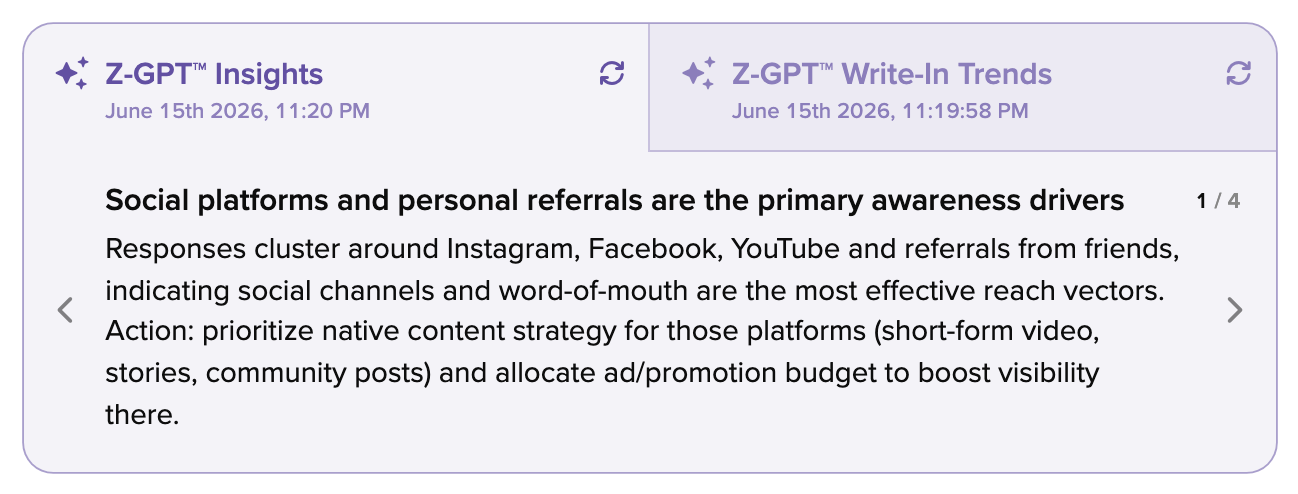
#### Z-GPT Insights - embedded AI summarization on surveys
Write-ins are some of the most valuable data, while also being the type of responses that are the hardest to analyze.
Z-GPT is a built-in analytics feature that will summarize responses and help extract trends on your behalf, instead of asking an intern or manually reading yourself.
Once you hit a certain volume of responses (\~25) we send it to an LLM to extract summaries. This runs once a week.
These summaries are present in the Dashboard or when you click into a specific survey. On a survey's Dashboard, scroll below a question's results to find them.
Here are examples of AI summarization on one of Zigpoll's attribution surveys.
#### Z-GPT Chat
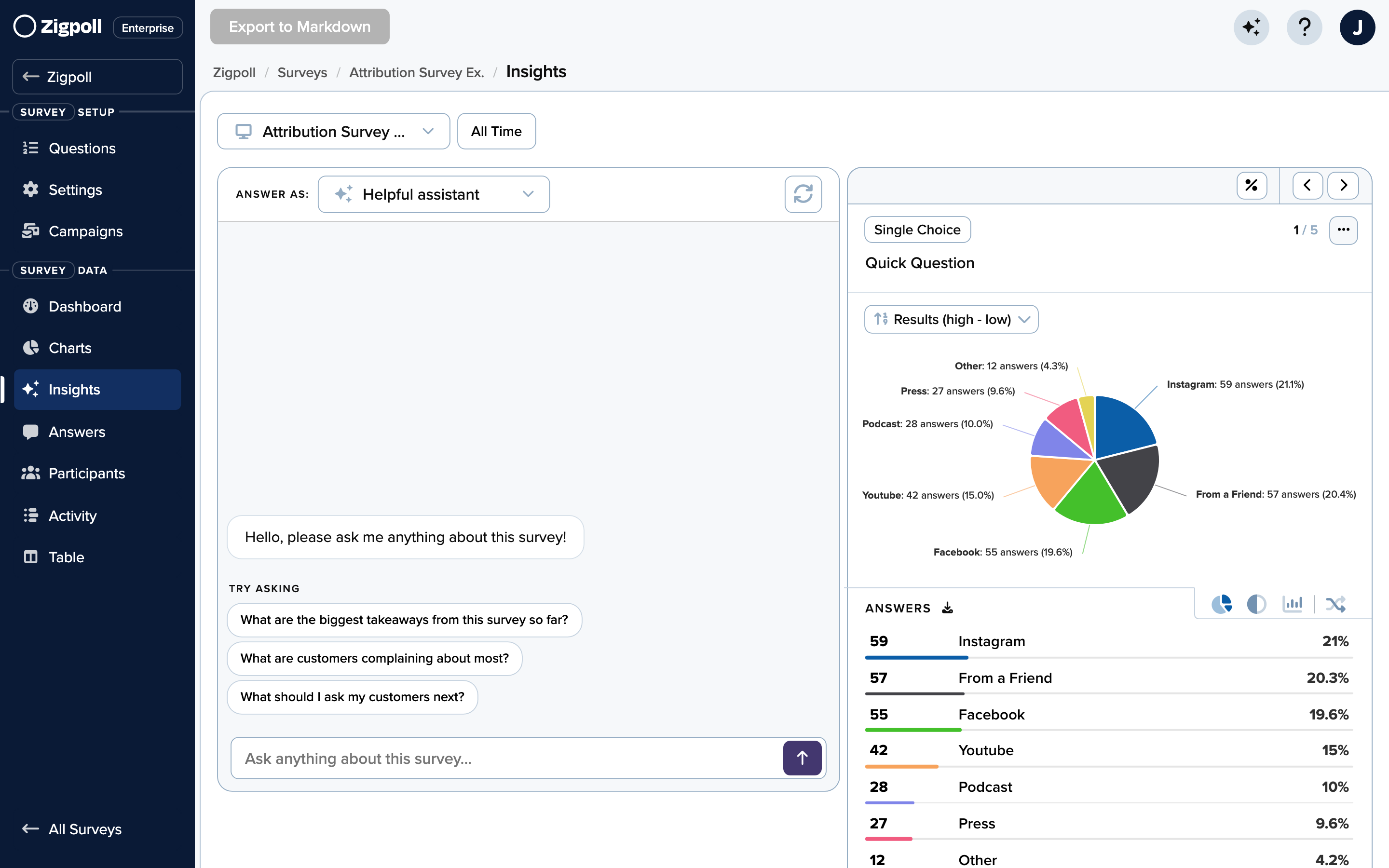
You can ask questions directly on your data using chat. This can be found in the "Insights" tab in the sidebar.
You have the ability to change which survey the data is being pulled from by selecting the survey at the top.
You can also **export a chat conversation to Markdown** to share or archive an analysis, and the Insights page shows your remaining monthly **insight credit** balance (with an upgrade link when you're running low). Credit allotments per plan are listed in [Subscription Plans](/subscription-plans.md).
#### Report generation and data export
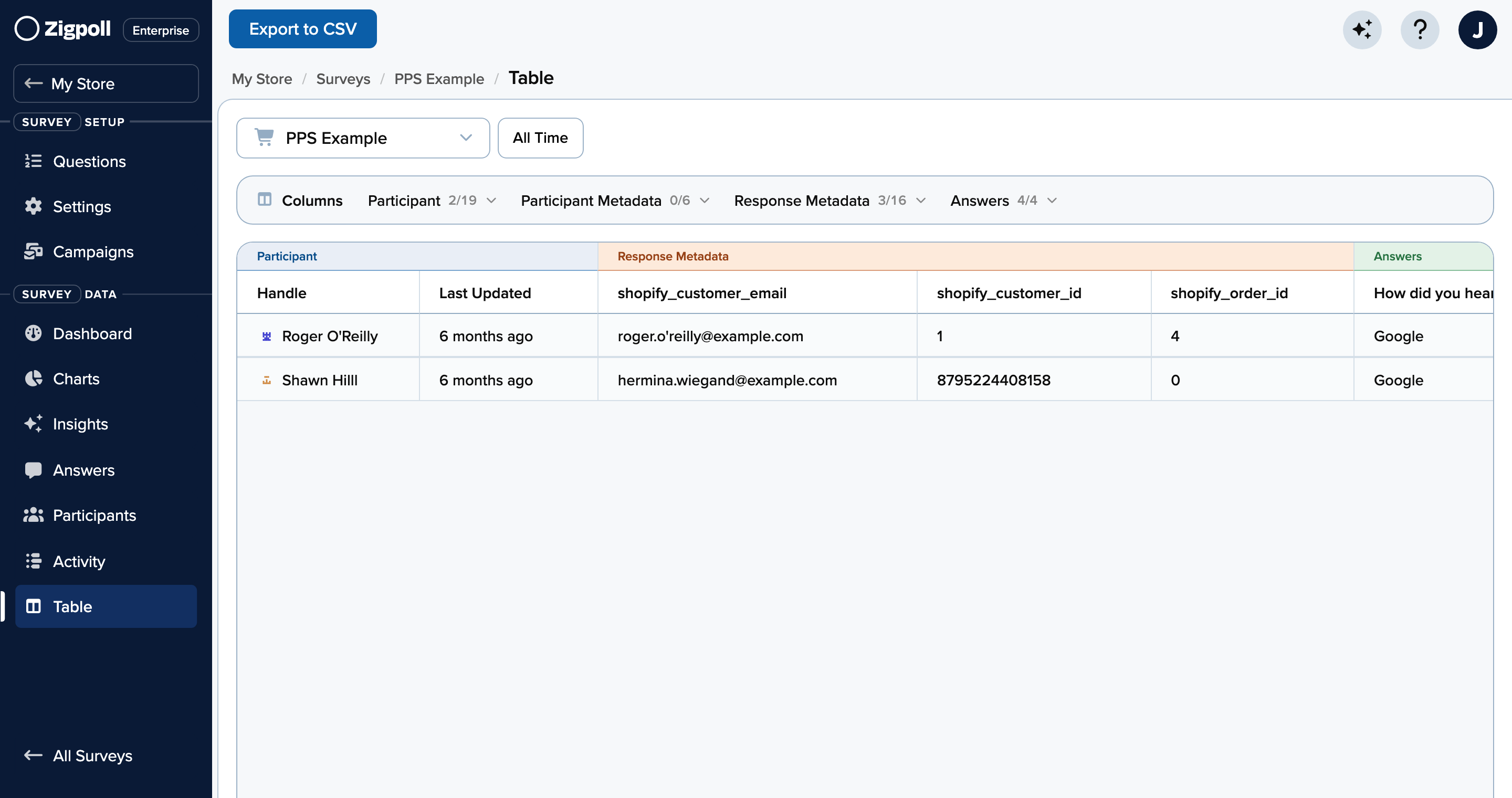
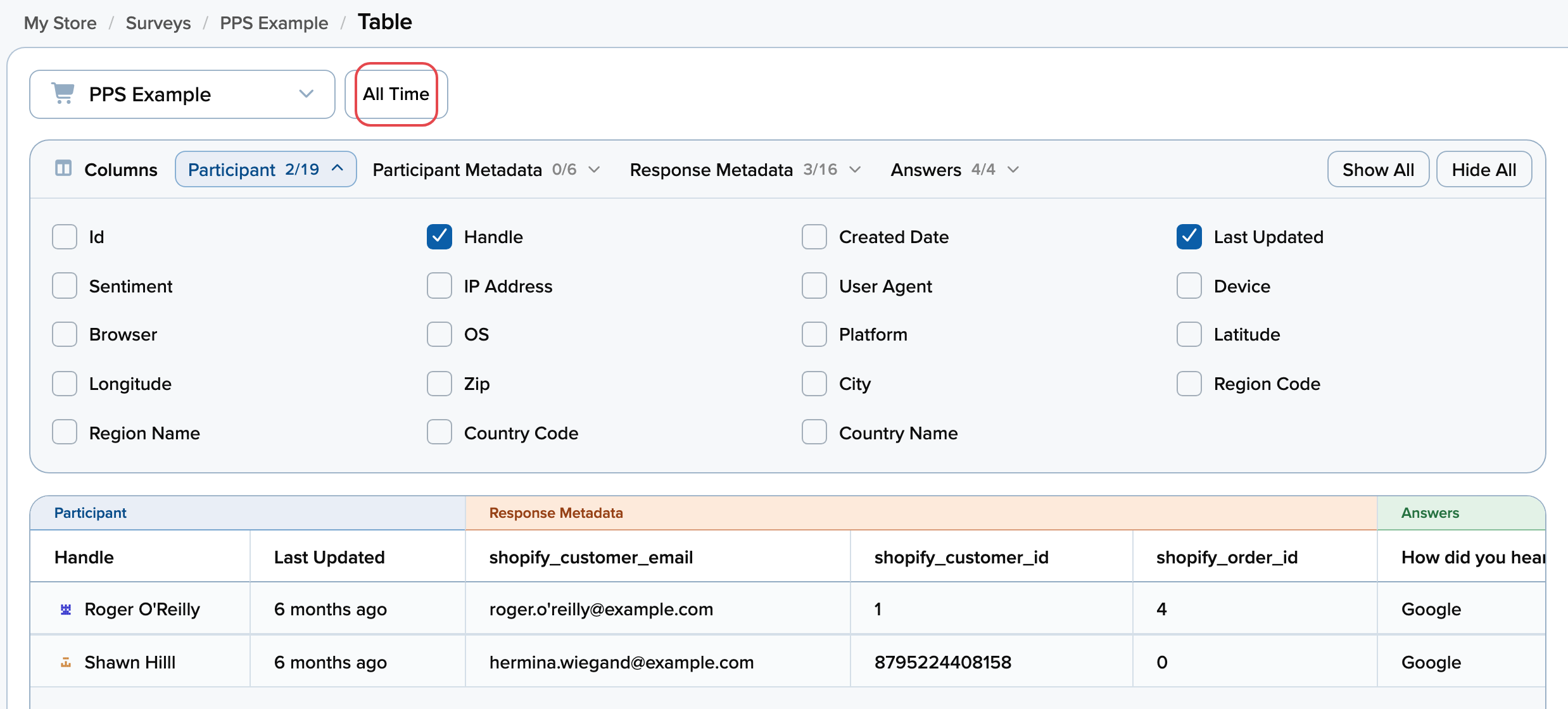
You can generate a custom report with the columns you care about then export to CSV.
To start, go to "Table" in the sidebar.
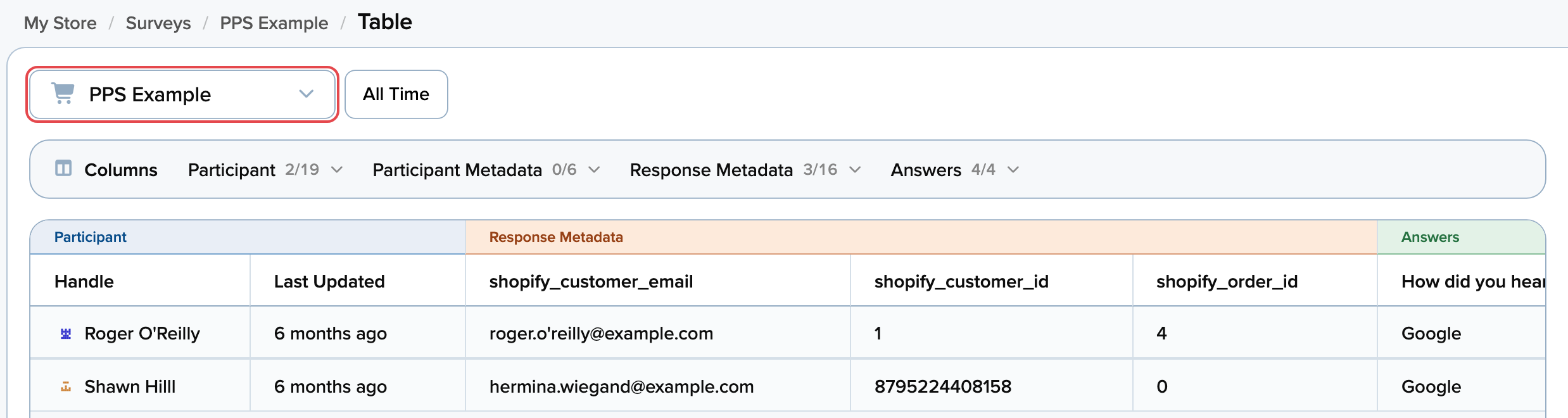
Select the survey you want to build a table for:
From here, you can select the fields that you want to export and date range you want to export:
#### Sending into other services
Many users want to perform deeper dives into their data. Zigpoll has a wide set of integrations supporting this.
The most common of these are exporting to [Google Sheets](/integrations/google-sheets.md), logging events into product analytics platforms like [Segment](/integrations/segment.md), and pulling response data from the [Reporting API](https://apidocs.zigpoll.com/). Please see [Integrations](/integrations.md) for more.
---
# Agent Instructions
This documentation is published with GitBook. GitBook is the documentation platform designed so that both humans and AI agents can read, navigate, and reason over technical content effectively. Learn more at gitbook.com.
## Querying This Documentation
If you need additional information that is not directly available in this page, you can query the documentation by asking a question.
Perform an HTTP GET request on the following URL with the `ask` and `goal` query parameters:
```
GET https://docs.zigpoll.com/analytics-ai-and-reporting.md?ask=&goal=
```
`ask` is the immediate question: it should be specific, self-contained, and written in natural language.
`goal` is what the user is ultimately trying to achieve, the reason they need the answer. Sharing it helps GitBook give you a better, more relevant answer. A goal is most helpful when it describes the outcome the user wants rather than restating the question. For example, with `ask=how do I create an API token`, a goal like `automate deployments from our CI pipeline` lets GitBook tailor the answer to that use case.
The response will contain a direct answer to the question and relevant excerpts and sources from the documentation.
Use this mechanism when the answer is not explicitly present in the current page, you need clarification or additional context, or you want to retrieve related documentation sections.