> For the complete documentation index, see [llms.txt](https://docs.zigpoll.com/llms.txt). Markdown versions of documentation pages are available by appending `.md` to page URLs; this page is available as [Markdown](https://docs.zigpoll.com/questions/question-logic.md).
# Question Logic
Show a question only for certain answers (branching), skip ahead, end the survey or run actions using question logic.
Question logic changes what happens in your survey based on how someone answers its questions.
Open a question (**Questions →** the question **→ Details**). There are two kinds of logic:
* **Action Logic** runs after someone answers *this* question: skip ahead, end the survey, redirect, set metadata, or send the answer to another tool. Click **Add Action Logic**.
* **Presentation Logic** decides whether *this* question is shown at all, based on earlier answers or metadata. Click **Add Presentation Logic**.
## Branching: show a question only for certain answers
To give respondents different follow-up questions depending on their answer, put **Presentation Logic** on each follow-up. Don't use **Skip to** for this.
1. Add the follow-up questions after the question they depend on.
2. Open a follow-up and click **Add Presentation Logic**.
3. Choose **show** and add a condition on the earlier question. For more than one answer, click **Add condition** and join them with **or**.
4. Click **Update Question**, then repeat for the other follow-ups.
For example, with a Single Choice question *What's stopping you today?* (answers *Not sure which to pick*, *Need more information*, *Just browsing*):
* An **Actions** question with a booking button: show when the question **= (is equal to)** *Not sure which to pick* **or** **= (is equal to)** *Need more information*.
* A **Text & Image** question and an **Email** question after it: give both the same condition, show when the question **= (is equal to)** *Just browsing*.
A follow-up with **show** stays hidden unless its condition matches, so each respondent sees only the questions for their answer. Everyone else carries on to the next question they can see.
{% hint style="info" %}
**Why not Skip to?** **Skip to** only jumps ahead. The questions it jumps over are still shown to everyone who doesn't take that jump, and after the question you skip to the survey carries on in order, into the next path's questions. Keeping paths apart with skips takes an extra **Skip to** or **End Survey** at the end of every path. Presentation Logic needs none of that.
{% endhint %}
## Conditions
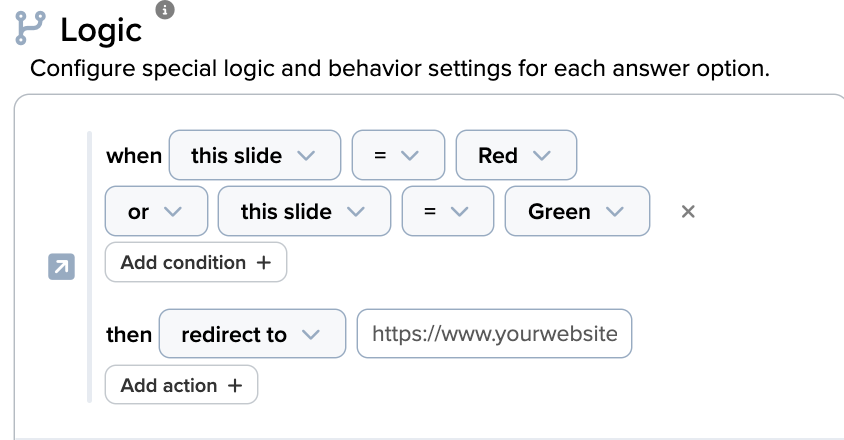
Logic starts with a **condition**: a rule that must be met for its **action** to take place.
A condition is based on the answer to the question. For example, a condition can check whether an answer is > or < a certain value, or equals a specific value.
You can combine conditions to build more complex logic. Click **Add condition**, then choose **and** or **or** between them. **and** is evaluated before **or**, so *A or B and C* means *A, or (B and C)*.
## Operators by question type
Which operators you can pick depends on the question type:
| Question type | Operators |
| --------------------------------------------- | ----------------------------------------------------------------------------------------------------- |
| Every answerable question | **is submitted**, **= (is equal to)** |
| Multiple Choice, Mosaic, Image Choice, Matrix | also **includes any**, **includes all**, **does not include any**, **does not include all** |
| Range, Slider | also **>**, **≥**, **<**, **≤** |
| Short Answer, Long Answer, Phone, Form Panel | also **contains**, **does not contain** |
| Text & Image, Reward, Thank You | **is presented** |
| Metadata | **=**, **>**, **≥**, **<**, **≤**, **contains**, **does not contain**, **exists**, **does not exist** |
{% hint style="warning" %}
**For Multiple Choice, use includes any or includes all, not "="**. "=" compares the whole set of selected answers at once, so it only matches one exact combination. **includes any** matches if any of the answers you list was selected, and **includes all** matches only if every one was.
{% endhint %}
**For Single Choice, Dropdown, Binary Choice and Autocomplete, use "="** once per answer and join the conditions with **or**. **includes any** isn't offered for these, because each person picks only one answer.
{% hint style="warning" %}
**Changed a question between Multiple Choice and Single Choice?** Re-check the conditions that use it on later questions. A condition whose operator the new type doesn't offer, such as **includes any** on a Single Choice question, turns into **is submitted** the next time you click **Update Question** on that later question. It then matches everyone who answered, so a follow-up meant for some answers shows to everyone.
{% endhint %}
Answers are matched against your original (default-language) options, so logic works the same in every translation.
{% hint style="info" %}
For **Matrix** questions, a condition can target a single question (row) — for example "if the *Delivery* row is rated Poor." Pick the question from the row dropdown when building the condition, or leave it on **any row** to match against every option selected across the whole matrix. If the matrix allows **Multiple Selections**, a row can hold several answers, so a row condition behaves as it does for a Multiple Choice question: **=** matches only when that answer is the row's single pick, and **includes any** matches when it is one of the picks.
{% endhint %}
When a condition is met, the **action** you define takes place. An action can happen inside your survey, like **skip** or **end survey**. It can also happen outside it, like **adding a metafield to Shopify** or **adding a customer tag**.
## Actions for all users
Choose from these actions:
* **Continue to the next question -** move to next question
* **End Survey** - finish the survey here, skipping any questions after this one.
* **Skip to -** direct to another question. After the question you skip to, the survey carries on **in order** from there, unless that question has its own logic. To finish a branch early, add **End Survey** to the last question of that branch.
* **Redirect To -** Send to a specific URL or web address. See [Redirect To](#redirect-to) below.
* **Run code -** Trigger a webhook or execute a script
* **Send Email -** Send an email to the respondent or yourself
* **Set / Unset metadata -** Store a value on the response (or remove one)
* **Increment / Decrement / Multiply / Divide metadata -** Adjust a numeric metadata value. A key that has never been set starts at 0.
## How rules are evaluated
When a question has several logic rules:
* **The first matching rule wins for where to go next.** Rules are checked from the top, and the highest rule that matches decides **Skip to**, **End Survey** or **Continue**. Put your most specific rules at the top.
* **All other answers will** is the catch-all row. It only decides where to go when no rule above it chose **Skip to**, **End Survey** or **Continue**.
* **Redirect To**, **Run code** and the metadata actions run for **every** rule that matches, not just the first.
{% hint style="warning" %}
**A redirect-only rule doesn't stop the catch-all.** If "equals *Very happy* → Redirect To page A" has no Skip, End or Continue action, the **All other answers will** row still runs, and its redirect fires too. Add **End Survey** (or **Continue**) to the specific rule so the catch-all is skipped.
{% endhint %}
## Redirect To
* Enter the full address, such as `https://mystore.com/pages/thanks`. If you leave off `https://`, Zigpoll adds it.
* The redirect fires when the question is submitted and the rule matches. On desktop the page opens in a **new tab**. On mobile the visitor is sent there in the **same tab**.
* **Redirect To doesn't work on Shopify checkout, Thank You or Order Status pages**, because Shopify doesn't let apps navigate the customer away from those pages. Use an **Actions** question with a button link instead, so the customer can click through.
* To send people somewhere when they finish, add the redirect to the last question with the condition **is submitted** (or **is presented** on a Text & Image question).
## The Back button
**Back** returns to the question the person actually came from, following any skips they took. It doesn't simply go to the question above in the list. When they answer again, the logic runs on the new answer, so a changed answer can take them down a different path. To stop people going back, turn on **Hide Back Button** under **Settings → General → More Options**.
## Adding a follow-up for "Other"
1. On the choice question, turn on **Write-in Answer** and set the **Write-in Label** (for example `Other`).
2. Add the follow-up question right after it.
3. On the follow-up, click **Add Presentation Logic** and show it when the choice question **= (is equal to)** `Other` (use **includes any** for Multiple Choice).
Logic matches the write-in by its label, not by what the person typed. What they typed is still saved and shown with the other answers.
## Presentation Logic
**Presentation Logic** shows or hides the current question when its conditions are met. A question with **show** stays hidden unless its conditions match. A question with **hide** is shown unless they match. Each question uses one Presentation Logic rule, so put all of its conditions in that one rule, joined with **and** or **or**. It's how you build branches: see [Branching](#branching-show-a-question-only-for-certain-answers).
## Metadata conditions
Besides answers, a condition can read **metadata**: values passed in from your site, or values stored by the metadata actions above. Pick **metadata** as the condition's source and enter the key name.
A metadata condition can compare against a fixed value (`metadata.score > 10`) **or against another metadata key**, with an optional offset. Choose **metadata** in the value picker and enter the other key:
* `metadata.a > metadata.b` — a is strictly larger than b
* `metadata.a > metadata.b + 1` — a leads b by at least 2
* `metadata.a >= metadata.b + -1` and `metadata.a <= metadata.b + 1` — a and b are tied or within one point
A key that has never been set counts as 0 in comparisons.
{% hint style="info" %}
**Scoring quizzes — "which option was picked most?"**
Give each answer style its own counter. On every question, add logic like *when this question is A → increment metadata `a` by 1* (and likewise `b`, `c`, `d`). Then add one result question per outcome, each using **Show or hide this question** with metadata conditions, for example:
* Show "Classic" when `metadata.a > metadata.b + 1` **and** `metadata.a > metadata.c + 1` **and** `metadata.a > metadata.d + 1`
* Show a blended "Romantic & Modern" result when `metadata.b >= metadata.c + -1` **and** `metadata.b <= metadata.c + 1`, and both b and c beat a and d.
Counters update before the next question's visibility is evaluated, so result questions placed at the end of the survey see the final totals.
{% endhint %}
## Integration actions
If you have integrations connected, their actions appear in the dropdown. These actions send the full survey response, not just the current question.
**Slack** — Send a notification to a selected Slack channel.
**Jira** — Create a new issue in a selected Jira project.
**ClickUp** — Create a new task in a selected ClickUp list.
**HubSpot** — Create a new deal in a selected HubSpot pipeline.
**Zendesk** — Create a new support ticket.
**Notion** — Add a new row to a selected Notion database.
**Klaviyo** — Subscribe the respondent to a selected Klaviyo list.
**Google Sheets** — Write a row of response data to a Google Sheet. Zigpoll creates the sheet automatically when you save, with headers based on your survey questions. You will be emailed a link to the sheet when the first response comes in.
**Mailchimp** — Subscribe the respondent to a selected Mailchimp audience.
**Drip** — Subscribe the respondent to a selected Drip campaign.
**Omnisend** — Add the respondent as a contact in Omnisend.
**Marketo** — Create or update a lead and add them to a static list in Adobe Marketo.
{% hint style="info" %}
Integration actions only appear when the corresponding integration is connected in your [Integration Settings](/integrations.md). Actions that require an email (Klaviyo, Mailchimp, Drip, Omnisend) only fire if the respondent has provided an email address.
{% endhint %}
## Additional actions for Shopify stores
On a Shopify store, these actions are also available:
* **Add Customer Tag** — needs a valid Shopify customer ID (`shopify_customer_id`) or email in the response's metadata.
* **Add Order Tag** — needs a valid Shopify order ID (`shopify_order_id`) in the response's metadata.
* **Add Customer Metafield** — if you map it to a metafield definition you created, Zigpoll writes the answer in that definition's type. See [Why a customer tag or metafield doesn't appear](/polls/behavior-settings.md#why-a-customer-tag-or-metafield-doesnt-appear).
* **Add Order Metafield** — if you map it to a metafield definition you created, Zigpoll writes the answer in that definition's type.
* **Generate Reward** — generate a discount code or add free shipping.
* **Add Store Credit** — give the respondent Shopify store credit.
To write the respondent's own answer into a tag or metafield, see [Saving the answer with `{{ value }}`](/polls/behavior-settings.md#saving-the-answer-with-value). If a tag or metafield never shows up in Shopify, see [Why a customer tag or metafield doesn't appear](/polls/behavior-settings.md#why-a-customer-tag-or-metafield-doesnt-appear).
## My logic isn't working
Check these in order:
1. **Rule order.** The highest matching rule decides where to go next. Move specific rules above general ones, and remember the **All other answers will** row is only a fallback.
2. **The operator.** For Multiple Choice use **includes any** or **includes all**, not **=**. For Single Choice, use **=** once per answer joined with **or**. For numbers on a Range or Slider, use **>** or **<**.
3. **A follow-up shows to everyone.** Either the respondent reached it through a **Skip to** instead of it being hidden with Presentation Logic (see [Branching](#branching-show-a-question-only-for-certain-answers)), or its condition became **is submitted** after the earlier question's type changed. Open the follow-up and check its Presentation Logic.
4. **The value still exists.** If you renamed or deleted an answer option after building the rule, pick the answer again in the rule.
5. **Skip then falls through.** After a **Skip to**, the survey continues in order from that question. Add **End Survey** where a branch should stop.
6. **Redirects on Shopify checkout pages.** **Redirect To** can't navigate on checkout, Thank You or Order Status pages.
7. **The survey was already completed.** Zigpoll remembers progress in the browser, so testing again in the same browser doesn't start from a clean slate. Test in a private window.
8. **Update Question.** Logic isn't live until you click **Update Question**.
---
# Agent Instructions
This documentation is published with GitBook. GitBook is the documentation platform designed so that both humans and AI agents can read, navigate, and reason over technical content effectively. Learn more at gitbook.com.
## Querying This Documentation
If you need additional information that is not directly available in this page, you can query the documentation dynamically by asking a question.
Perform an HTTP GET request on the current page URL with the `ask` query parameter, and the optional `goal` query parameter:
```
GET https://docs.zigpoll.com/questions/question-logic.md?ask=&goal=
```
`ask` is the immediate question: it should be specific, self-contained, and written in natural language.
`goal` is optional and describes the broader end goal you are ultimately trying to accomplish on behalf of the user. GitBook uses it to tailor the answer towards what is most useful for that goal.
The response will contain a direct answer to the question and relevant excerpts and sources from the documentation.
Use this mechanism when the answer is not explicitly present in the current page, you need clarification or additional context, or you want to retrieve related documentation sections.